Top Horizontal Menu

Showing posts with label Geekdom. Show all posts

iShoes Stand

First - let me apologize for featuring this kitschy product.  I'm a sucker for cutesy tech add-ons.  I was browsing through the Digibabe store at SM City Baguio and I found these phone stands.  Yes - they are called iShoes.  You plug it onto the connector at the bottom of your phone and use it as a stand.  They're not very stable --- so apart from this photo-op with me - I won't really trust my gadgets with them.  They're just 50 pesos a piece.  They have variants for the micro-USB, the lightning connector, and the 30-pin Apple connector.


The Delta iPhone App


I am on my way to the US. As I wait for the flight to be boarded, I am exploring the Delta iPhone app. It's a great and useful app.


The app provides information on my flight, my mileage records and can even track my checked bags.


You can get other information like Delta Partners. If you Park and Fly, there's a nifty tool that reminds you where you parked.


If you are in a multiple flight journey, you can track status of each segment.


Airport maps are also available.


Details also include the gate information for your flight.

If you are a regular passenger of Delta - go ahead and download the app from the iTunes store.


The Shanghai Maglev Train

One of the highlights of my trip to Shanghai is the trip from the airport to downtown on board the Maglev train.  It's a very fast train.


It looks like the robot Wall-E.


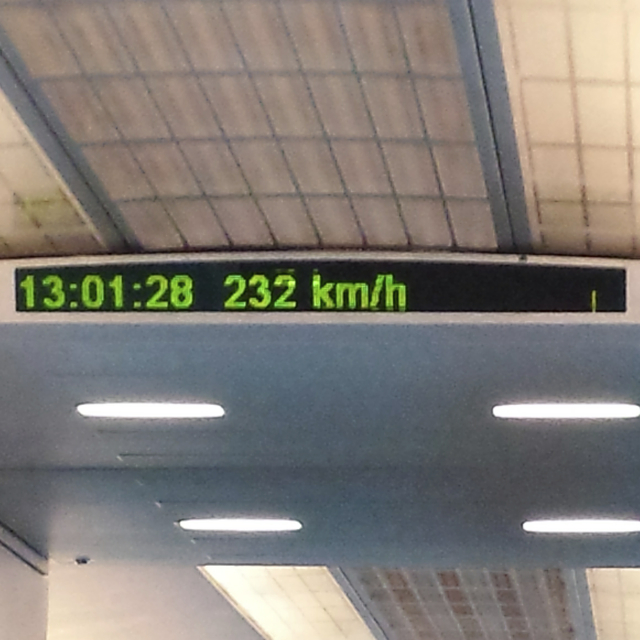
The train has a speedometer that the passengers can see


And we're off


From 38 to 232 kph in a minute


It reaches top speed of 300 kph.  They say that there are two trips in the day when it reaches a top speed of 420++ kph

A one way journey on the train will cost you 50 RMB.  80 RMB for a round trip ticket.  You can also show your boarding pass to get a discounted rate.


On Angel's Wings Mobile Device Stand

I found this lovely stand for my iPhone.   They look like Angel's wings and it has a suction cup that attaches to the back of the iPhone.


You can have your iPhone on landscape mode for watching videos.


You can also have it on Portrait - for FaceTime.


Nexus 7

I am not an Android virgin.  I used to have an HTC Hero - which I think had Android Donut ( or was it Eclair? ).  When I first got my HTC Hero - I loved it but as I started to use it - I found the phone to be slow and sometimes unresponsive.  Eventually - I sold it ( after one year ) - then I switched to the dark side ( I got an iPhone 4s ).   Since then - I've bought mostly Apple products --- but I've always been itching to try Android after the many iterations in the past couple of years.

On my last trip to the US - I thought that the best way to try it out is with the Nexus 7.  It runs native Android ( Jelly Bean ).  It has an impressive processor and wonderful display --- all for just 199 USD ( before taxes ).   So I decided to get one - not the 199 USD variant ( 16 GB ) - but the 249 USD variant ( 32 GB ) - because the lower priced model was out of stock.


LIke any shiny new toy - I was so excited as I unboxed it.


I don't read manuals - so I had a hard time looking for the on-off switch, which I later found to be on the upper right hand side above the volume rocker.


Setup was quick - I just had to login using my Google ID.


I've been playing with it for the past week and I am truly impressed with the responsiveness of the gadget.  Apps open instantaneously.  The layout is a bit confusing for my taste.


There's just one thing that I found concerning with the unit that I got.  The 3 mm headphone jack seems to be broken.  My next trip to the US is not till June --- but I may have to exchange and return this because when an earphone is plugged into the jack -- it doesn't work.  It only works if it's plugged in halfway - which is annoying.

But apart from the earphone jack --- everything about this gadget is great -- and with a price like that -- I will dare say it's the best tablet that your money can buy.

Brookstone Mobile Charger

When I got the Brookstone portable scanner - I also bought the Brookstone Mobile Charger.  This battery will allow me to fully use the scanner even if there's no power outlet around.  It also works with the wireless drive that I have ( the G-Connect ).  It can also charge my iPad.


Nest iPad Stand


I bought this iPad Stand from Qruis - a store at the Powerplant mall which sells interesting accessories for your gadgets.   This iPad Stand is called Nest.  What I like about this stand is that I can actually use it even with the iPad wearing the Apple Smart Cover.  It can also serve as a stand for other tablets ( like my new Nexus 7 ) and my iPhone 5.

THis is a great stand for doing video calling, watching videos or when I am typing my blog using my blue tooth keyboard.


Brookstone iConvert Scanner

All the traveling I do for my job has introduced a problem into my life.  I have to file my expense receipts when I travel - or else filing my expense reports become a problem.  I know that I can use my phone to capture an image of my receipts - which is ok for small receipts - but for big ones --- it doesn't work that well.


I first saw this scanner at Target - then I saw it at Brookstone.  You scan your documents and it gets loaded into your iPad ( it also works with the iPhone and the iPod Touch ).

For it to work - you need to download the app that comes with it from the app store.  You also need to calibrate the scanner before you use it with the calibration card that comes with it.

The scanner works well.  BTW - it's light - so carrying it with you - isn't too much of a problem.  

It comes with the old 30 pin connector - so you need the 30 pin to lightning connector if you have devices which comes with the smaller apple connector.


Verso Prologue Kindle Case

I bought a Kindle Paperwhite.  I love the device.  I love it enough to dress it up a bit.  I decided to get a case which makes the device look like a traditional book.   This is the Verso Prologue.


Kindle Paperwhite<div><br></div>

In the past couple of years,  I've slowly migrated my reading from physical books to their electronic version.   I just found it a lot easier to buy books from Amazon - than to go to the local bookstore to buy a copy of the latest best seller.

I have been using my iPad for reading.  However - I find that reading before bedtime on my iPad introduces other distractions - that prevents me from actually just focusing on my book.  So I realized - that maybe I should have an exclusive device for my reading - and decided to get a Kindle Paperwhite for that.


The device is bare bones - which is part of the charm.  I like the weight --- good enough for long reading.

Comparing the size of the Kindle Paper white and my iPhone 5.


Inside the box - you will find the device and a micro-USB connector.   You can connect it to your computer to charge - or most of the USB chargers.  You can also buy the exclusive Amazon Kindle USB charger.

I tend to use the brightest settings.  Anything below that - I find is not bright enough for me.

Setup is easy.  Just login using your existing Amazon account - and you get access to all your books.

So far - I've been enjoying my Kindle.  I do notice that it's a bit slower than what I'm used to seeing in myh iPad.   I think that's ok --- but I do wish it to be much more reactive than what it is currently now - but - hey for 119 USD --- I think I can live with the current performance.

The Apple Wireless Keyboard


I've had an iPad for three years now.  In those three years,  I have used my iPad mainly for consuming content ( browsing, facebook, twitter, other social networks ).   I have tried to use it to do some work (mainly blogging) or editing photos.   It's great for editing photos.  Most of the apps for photo editing do a very good job ( Filterstorm, iPhoto, Aviary ).  The problem is when you have to type an article.  I find it very difficult to type fast using the device keyboard.  I bought keyboards before - which used a rubberized material.  I didn't like them because they were not that sensitive and I end up with numerous typo errors because of those keyboards.  So I finally decided to get the Apple bluetooth keyboard.   It's been great so far.   This blog entry was edited using the keyboard.   BTW - I've been thinking of getting a Windows Surface Pro - precisely for the attachable keyboard.   I decided not to do that and set me back for over 1,000 USD.   With this keyboard for less than 100 USD --- I get what I was looking for using my existing iPad.

Portable Paper Shredder from Muji

My friends make fun of me because I keep credit card and ATM receipts in my wallet.  If you are familiar with the Seinfeld episode where George had a very fat wallet/billfold because of his receipts --- my wallet can sometimes get to that state.  I don't keep the receipts as keepsakes.  I keep them because I'm paranoid about leaving my banking information in the trash.  So - what I do is I keep them in my wallet - then once a month - I shred them using my shredder at home.

Last Christmas - I discovered that Muji actually has a portable shredder.  It doesn't need electricity to operate - you just turn a know clockwise - similar to the motion you make when using a pencil sharpener.   It's very handy - and can even fit in your purse or man-purse.  

I excitedly showed it to my friends --- and they were not amused.  They asked me why I can't just tear up the receipts using my bare hands.  Uh-duh-uhm.  I don't have any answer to that question.